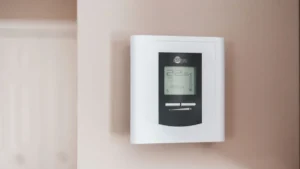
The Honeywell T6 thermostat comes in two versions: the T6 Pro (TH6210U, TH6220U, TH6320U), which runs on AA batteries or a C wire, and the T6 Pro Smart (TH6220WF2006, TH6320WF2003), which adds Wi-Fi and requires a C wire. You set the time, mode and fan from the front buttons, the schedule from Menu, and equipment settings in installer setup (ISU). Most Honeywell T6 thermostat problems, like a blank screen or a “Wait” message, come down to power, wiring or the built-in compressor delay.
Quick facts
| Task | Set up, adjust and troubleshoot a Honeywell T6 Pro or T6 Pro Smart thermostat |
|---|---|
| Appliance | Honeywell Home T6 Pro (TH6210U2001, TH6220U2000, TH6320U2008) and T6 Pro Smart (TH6220WF2006, TH6320WF2003) |
| Time needed | 10 minutes for everyday settings; 20 to 45 minutes for installer setup |
| Difficulty | Easy for everyday settings; moderate for installer setup |
| Tools needed | None for settings; fresh AA alkaline batteries for the T6 Pro; the Resideo or Honeywell Home app for the T6 Pro Smart |
| Most likely fix | Check power (breaker, furnace switch, furnace door, batteries) and the system type in installer setup |
The T6 family is sold under the Honeywell Home brand and made by Resideo. This guide pulls together setup steps, the settings most homeowners need, and the troubleshooting tables from the official T6 manuals. For factory and Wi-Fi resets on every Honeywell model, see our Honeywell thermostat reset guide.
Which Honeywell T6 thermostat do you have?
Pull the thermostat straight off its wallplate and read the model number on the back. The table below shows how the two T6 lines differ, based on their Honeywell manuals.
| Feature | T6 Pro (programmable) | T6 Pro Smart (Wi-Fi) |
|---|---|---|
| Models | TH6210U2001, TH6220U2000, TH6320U2008 | TH6220WF2006, TH6320WF2003 |
| Power | AA alkaline batteries, a C wire, or both | 24 VAC C wire required |
| Batteries | 2 AA included; optional backup with a C wire | None listed |
| Controls | Mode, Fan, center Menu button, + and – | Touch screen with Mode, Menu and Fan |
| Schedule | Menu > PROG on the thermostat | Menu > Schedule on the thermostat, or the app |
| Factory reset | Not listed in the user manual | Advanced menu > Reset (the only place for factory reset) |
The TH6320 models support more equipment stages than the TH6210 and TH6220. For example, the T6 Pro installation guide notes that the TH6210U has only one compressor stage, and the TH6220U has only one when set up for a heat pump.
How do you set up a Honeywell T6 Pro thermostat?
Wire it, power it up, set the time and date, then check installer setup so the thermostat knows what equipment you have. If you are replacing an old thermostat, our Honeywell thermostat wiring guide explains each terminal and the R slider.
Total time: 30 minutes
Turn the power back on
After wiring and snapping the thermostat onto the UWP wallplate, turn the power on at the breaker box or switch. If you rely on batteries, install fresh AA alkaline batteries first.
Set the time
Press Menu, use the arrows to go to TIME and press Select. Choose 12 or 24 hour, then set the hour and minutes, pressing Select after each.
Set the date
Press Menu, go to DATE and press Select. Set the year, month and day, pressing Select after each, to save and exit.
Enter installer setup
Press and hold the center button and the + button for about 3 seconds to open the advanced menu, then press Select to enter ISU.
Confirm the system settings
Press Select to move through the options and + or – to change them. Check heating system type, equipment type, reversing valve (heat pumps), and the number of cool and heat stages.
Save and test
Press Home to save and return to the home screen. Then set the mode to Heat or Cool and confirm the equipment starts within about 5 minutes.
How do you set up a Honeywell T6 Pro Smart thermostat?
After power-up, touch START SETUP and choose whether to set it up in the app or on the thermostat. The T6 Pro Smart guide covers both paths.
- On the thermostat: Touch START SETUP, then touch No when asked about using the app. Scroll through each ISU option with the arrows, touch Edit to change one, then Done. Scroll to the Finish screen and touch Select to save.
- In the app: Download the Honeywell Home app (Honeywell’s newer guides call it the Resideo app). The T6 Pro Smart guide says pros can press and hold the Honeywell Home logo for 5 seconds to enter Contractor Mode and invite the homeowner.
- Advanced menu later: Press and hold Menu for 5 seconds. It holds Device Setup, Screen Lock, System Test, Range Stop and Reset.
The T6 Pro Smart needs a C wire. If the screen never lights after wiring, check that the C wire is connected at both the thermostat and the furnace or air handler.
What are the most important Honeywell T6 settings?
System type, equipment type, stages and the reversing valve setting matter most, because a wrong choice makes the system heat or cool incorrectly. The ISU numbers below come from the T6 Pro installation guide. The T6 Pro Smart uses the same numbers for the core options (120 through 300 and 1420), but some later numbers differ, so check its own guide for the rest.
| ISU | Setting | What it controls |
|---|---|---|
| 120 | Schedule type | Non-programmable, 5-2, 5-1-1 or 7-day (T6 Pro Smart: no schedule, every day the same, 5-1-1, 5-2 or each day) |
| 200 | Heating system type | Conventional forced air, heat pump, radiant heat, or none (cool only) |
| 205 | Heating equipment type | Gas, high-efficiency gas, oil, electric, fan coil, air-to-air or geothermal heat pump, hot water or steam |
| 218 | Reversing valve O/B | O (energized in cool) or B (energized in heat); heat pumps only |
| 220 | Cool / compressor stages | 0, 1 or 2, depending on model |
| 221 | Heat / backup heat stages | Number of heat or backup heat stages |
| 230 | Fan control in heat | Equipment controls fan, or thermostat controls fan |
| 300 | System changeover | Manual, or automatic (adds Auto mode) |
| 387 | Compressor protection | Off or 1 to 5 minutes |
| 425 | Adaptive Intelligent Recovery | Starts heating or cooling early to hit the setpoint on time |
| 435 | Keypad lockout | Whether lockout is allowed or how much is locked, depending on series |
| 1420 | Temperature display offset | Shows up to 3°F higher or lower than measured |
Leave compressor protection on. Honeywell says it prevents the compressor from restarting too soon after a shutdown.
How do you use the everyday settings on a Honeywell T6?
Press Mode for the system, Fan for the blower, and + or – for the temperature. These steps come from the T6 Pro user manual and work the same way on the T6 Pro Smart touch screen.
- Mode: Press Mode to cycle through Auto, Heat, Cool, Em Heat and Off. Available modes depend on your system and settings.
- Fan: Choose Auto (fan runs only with heating or cooling), On (always on), or Circ (runs randomly about 33% of the time).
- Temporary hold: Press + or – to change the temperature until the next schedule period. Press + or – then Cancel to end it.
- Permanent hold: While the setpoint flashes after a change, press Hold (the Mode button) to keep it until you cancel.
- Schedule: Press Menu and select PROG. Our guide on how to program a Honeywell thermostat covers each step.
- Keypad lockout: Menu > LOCK, then choose OFF, PART or ON.
For simple mode and temperature changes on any Honeywell model, see how to set a Honeywell thermostat.
How do you troubleshoot a Honeywell T6 thermostat?
Start with power and settings, because Honeywell’s own troubleshooting tables start there. Work down this table, which combines the T6 Pro and T6 Pro Smart guides.
| Problem | What to check | Fix |
|---|---|---|
| Screen is blank | Breaker, power switch at the HVAC unit, furnace door, AA batteries (T6 Pro) or C wire (T6 Pro Smart) | Reset the breaker, close the furnace door firmly, install fresh AA alkaline batteries |
| Heating or cooling does not respond | Mode and setpoint | Heat: set higher than inside temperature. Cool: set lower. Wait 5 minutes |
| “Cool On” or “Heat On” flashing, or “Wait” | Compressor protection timer | Wait 5 minutes for a safe restart |
| Heat runs with cooling, or cooling on a heat call | Heat pump with a wire on W | Move backup heat to AUX or E; never use W on a heat pump |
| Temperature setting will not change | Setpoint limits | Heat 40–90°F, Cool 50–99°F, plus any range stops set by the installer |
| Buttons do nothing | Keypad lockout | Press the center button and enter 1234 (T6 Pro) |
| Screen hard to read (T6 Pro Smart) | Backlight setting | Raise inactive brightness in the Menu (max level 5) |
A flashing “Cool On” is normal for a few minutes; our guide to the Honeywell thermostat blinking Cool On explains why.
What do the Honeywell T6 Pro Smart alert numbers mean?
The T6 Pro Smart shows an alert icon and number in the clock area; read the details in Menu > Alerts. Here are the alerts listed in its installation guide.
| Alert | Meaning | What to do |
|---|---|---|
| 164 | Heat pump needs service | Contact your dealer to diagnose the heat pump |
| 168 | Wi-Fi radio error | Remove the thermostat from the wallplate or power cycle at the breaker for 1 minute; if it stays, have the thermostat replaced |
| 170 | Internal memory error | Contact your dealer |
| 171 | Set the date and time | Set them; the schedule needs them |
| 173 | Thermostat temperature sensor error | Contact your dealer to replace the thermostat |
| 175 | AC power resumed | Power came back after a loss; no action needed |
| 177 / 178 | Indoor / outdoor wired sensor error | Sensor not connected or wiring short; contact your dealer |
| 181 / 182 | Replace air filter 1 / 2 | Change the filter, then dismiss to reset the timer |
| 399 | No internet | Check your router and network settings |
| 400 | No Wi-Fi signal | Wait for it to reconnect, or select a new network |
| 508 | Wi-Fi not configured | Connect it using the app |
⚠️ Safety first
- Turn off power to your heating and cooling system at the breaker or furnace switch before you remove the wallplate or touch any wires.
- Disconnect power at the breaker before removing panels on the furnace or air handler.
- The T6 Pro and T6 Pro Smart are 24-volt thermostats. Honeywell says the T6 Pro Smart does not work with electric baseboard heat (120-240V) or millivolt systems.
- Compressor protection is bypassed during System Test. Do not switch cooling on and off quickly while testing.
- If you have a gas furnace and you smell gas, leave the home and call your gas utility or 911 from outside. Do not operate switches.
When should you call a technician?
Call an HVAC technician when the thermostat is powered and set correctly but your equipment still does not run. Honeywell’s alerts also point to a dealer for several faults. Clear signs include:
- Alert 164 (heat pump needs service), 170, 173, 177 or 178 appears.
- The breaker or a furnace fuse trips after the thermostat is installed.
- You are not sure which system type, equipment type, stages or O/B setting matches your equipment.
- The screen stays blank on a T6 Pro Smart even though the breaker and furnace switch are on, which points to a C wire or transformer problem.
- Heat or cooling runs at the wrong time even after you check the W wire on a heat pump.
How can you keep your Honeywell T6 running well?
A little upkeep prevents most T6 complaints.
- Replace T6 Pro batteries once a year, or when the low-battery icon appears; see our Honeywell thermostat battery guide.
- Set air filter reminders in ISU and change the filter when one appears. ENERGY STAR advises checking it monthly and changing it at least every three months.
- Write down or photograph your ISU settings, so you can restore them after any reset.
- Keep the furnace door fully closed, since many furnaces cut power when it is open.
- Leave compressor protection turned on.
Frequently asked questions
Does the Honeywell T6 need a C wire?
The T6 Pro can run on 2 AA batteries, a C wire, or both. The T6 Pro Smart (Wi-Fi) requires a C wire for 24 VAC power. If you have no C wire, Honeywell’s THP9045 C-wire adapter can be used in many cases.
How do I get into installer setup on a Honeywell T6 Pro?
Press and hold the center button and the + button for about 3 seconds to open the advanced menu, then press Select to enter ISU. On the T6 Pro Smart, press and hold Menu for 5 seconds and choose Device Setup.
How do I factory reset a Honeywell T6 Pro Smart?
Press and hold Menu, scroll to Reset, then choose Factory Reset. The installation guide says the advanced menu’s Reset option is the only place to access a factory reset. Write down your ISU settings first.
What is the Honeywell T6 keypad lockout code?
The T6 Pro user manual gives the unlock password as 1234. Press the center button, enter 1234 one digit at a time with the arrows and Select, then press Select again.
Why does my Honeywell T6 run heat when it should cool?
On a heat pump, Honeywell says to make sure no wire is connected to W, because backup heat must go to AUX or E. Also check that the reversing valve setting (O or B) in ISU 218 matches your heat pump.
Related error codes
- How to reset a Honeywell thermostat (every model)
- Honeywell thermostat wiring: terminal and color code guide
- Honeywell thermostat blinking “Cool On”: what it means and how to fix it
- How to program a Honeywell thermostat step by step
- How to set a Honeywell thermostat (heat, cool and schedule)
- How to change a Honeywell thermostat battery
- All thermostat guides
Sources
- Resideo: T6 Pro Programmable Thermostat Installation Instructions (33-00181EFS)
- Resideo: T6 Pro Programmable Thermostat User Manual (33-00182EFS)
- Resideo: T6 Pro Smart Thermostat Installation Guide (33-00392)
- Honeywell Home: How Do I Reset My Honeywell Home Device?
- Honeywell Home: My Thermostat Display Shows “Wait” or “Waiting for Equipment” or Has a Flashing “Cool On”
- ENERGY STAR: A Guide to Energy-Efficient Heating and Cooling