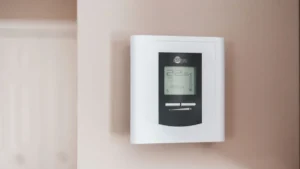
To reset a Honeywell thermostat, first find your model, then pick the right kind of reset: a restart, a schedule reset, a Wi-Fi reset or a full factory reset. On most newer Wi-Fi models (T5, T5+, T6 Pro Smart and T9) the reset options sit under the Menu, inside a “Reset” screen. Older FocusPRO and VisionPRO Wi-Fi models use a button combo plus a short number code, such as 90 and 1 for a factory reset. Try the smallest reset first, because a factory reset erases every setting.
Quick facts
| Task | Reset a Honeywell Home thermostat (restart, schedule, Wi-Fi, HomeKit or factory reset) |
|---|---|
| Appliance | Honeywell Home thermostats (T-series, Lyric Round, Smart WiFi 9000, FocusPRO, VisionPRO, RTH series) |
| Time needed | 2 to 5 minutes for the reset, plus 10 to 30 minutes to set things up again after a factory reset |
| Difficulty | Easy |
| Tools needed | None for most models; fresh AA or AAA alkaline batteries for battery models; the Resideo or Honeywell Home app for Wi-Fi models |
| Most likely fix | A schedule or Wi-Fi reset solves most problems without wiping your system setup |
This guide covers how to reset a Honeywell thermostat on every model family that Honeywell Home (the thermostat brand now run by Resideo) publishes reset steps for. Each section uses the exact menu path or code from the official Honeywell Home support page or the model’s own manual. If your model is not listed, its manual is the safest source, and we explain where to find it below.
Which Honeywell thermostat reset do you need?
Most people do not need a factory reset. Start with the reset that matches your problem, and move to a bigger one only if the small one fails. Honeywell’s own support page says to try a different reset if the first one does not fix the issue.
| Reset type | What it does | Use it when |
|---|---|---|
| Restart (power cycle) | Turns the thermostat off and back on. Settings stay. | Screen is frozen, buttons do not respond, or the display is acting odd |
| Schedule reset | Puts the program schedule back to the factory energy-saving schedule | Temperatures change at the wrong times, or the schedule is a mess |
| Wi-Fi reset | Clears or changes the saved Wi-Fi network | You got a new router, changed the Wi-Fi password, or the app shows the thermostat offline |
| HomeKit reset | Clears the Apple HomeKit pairing (only on HomeKit models) | You cannot add or re-add the thermostat in the Apple Home app |
| Factory reset | Erases all settings, schedules, Wi-Fi and installer setup | You are moving, selling, handing it to a new owner, or nothing else worked |
Before a factory reset, take a photo of your installer setup (ISU) settings or write them down. A factory reset can put the system type back to the default, and the thermostat may run your equipment wrong until it is set up again.
How do you find your Honeywell thermostat model?
Pull the thermostat gently off its wallplate and read the model number on the back, or check the thermostat’s own info screen. Honeywell model numbers usually start with letters like RCHT, RTH, TH or THX. On Wi-Fi models, the model may also show in the app under the device settings.
- T9: RCHT9510WF or RCHT9610WF
- T10: THX321WF
- T5, T5+ and T6 Pro Smart: RCHT8610WF, RCHT8612WF, TH6320WF2, TH6220WF2
- Smart / Lyric Round: TH8732WFH
- Smart WiFi 9000: RTH9580WF, RTH9585WF, TH9320WF
- FocusPRO 6000 Wi-Fi: TH6320WF1, RTH6580WF
- VisionPRO 8000 Wi-Fi: TH8320WF, RTH8580WF
- VisionPRO with date-code menu: TH8321WF
- Basic programmable: RTH2300 and RTH221 (the 2000 family), FocusPRO 6000 non-Wi-Fi (TH6110, TH6220, TH6320 without “WF”), and T4 Pro (TH4110U, TH4210U)
Most models simply pull straight off the wallplate. You do not need to unscrew anything just to read the label.
How do you reset a Honeywell thermostat? Quick chart by model
Find your family in this chart, then jump to its section for the full steps. All paths below come from the Honeywell Home reset support page, except where a section says it comes from the model’s manual.
| Model family | Factory reset | Wi-Fi reset | Schedule reset |
|---|---|---|---|
| T9 | Menu > Advanced Setup > Reset > Factory Reset | Menu > WiFi > Change Network | Menu > Advanced Setup > Reset > Schedule Reset |
| T10 | Menu > Thermostat Information (note Date Code) > Installer Options > enter Date Code > Reset > Factory Reset | Menu > WiFi > Change Network | Same as factory, then Schedule Reset |
| T5, T5+, T6 Pro Smart | Hold Menu > Reset > Factory Reset | Hold Menu > Reset > WiFi | Hold Menu > Reset > Schedule |
| Smart / Lyric Round | Hold Cloud icon > Reset | Hold Cloud icon > WiFi > Setup | Menu > Preferences > Restore Default Schedule |
| Smart WiFi 9000 | Menu > Preferences > Restore Factory Defaults > Yes | Menu > WiFi Setup | Menu > Preferences > Restore Default Schedule |
| FocusPRO 6000 Wi-Fi | Hold Up + Fan, set 90 / 1, Done | Hold Up + Fan, set 39 / 0, Done | Hold Up + Fan, set 85 / 1, Done |
| VisionPRO 8000 Wi-Fi | System, hold center blank box, set 0710 / 1, Done | Same, set 0900 / 0 | Same, set 0165 / 1 |
| VisionPRO TH8321WF | Menu > Dealer Information (note date code) > Installer Options > enter date code > Reset to Defaults > Yes | Menu > WiFi Setup | Menu > Preferences > Default Schedule |
| FocusPRO 6000 (non-Wi-Fi) | Not listed by Honeywell | n/a | Set Clock/Day/Schedule > Set Schedule > hold Done + Next 4 seconds |
| RTH2300 | Not listed by Honeywell | n/a | System setup function 40 set to 1 |
How do you restart a Honeywell thermostat without losing settings?
Cut its power for a short time, then restore it. For a battery thermostat, that means pulling the batteries. For a thermostat powered by a C wire, that means turning off the power to your heating and cooling system and then turning it back on.
Honeywell’s manuals say most settings live in permanent memory. The RTH2300/RTH221 manual says only the clock and day need to be set after you replace the batteries. The FocusPRO 6000 guide says that if you put batteries back within two minutes, you will not even need to reset the time and day.
Total time: 5 minutes
Turn the system switch to Off
Set the thermostat’s system mode to Off first. Honeywell’s RTH2300 manual warns that the heating or cooling system could stay on even with the batteries removed if you skip this.
Pull the thermostat off the wallplate
Grip the thermostat and pull it straight off the wallplate. Most Honeywell models simply unclip.
Remove the batteries or cut the power
On battery models, take the batteries out. On models with a C wire and no batteries, switch off the furnace or air handler at its power switch or breaker.
Wait about one minute
Give the thermostat time to fully power down. Keep it under two minutes on battery FocusPRO models so the clock stays set.
Restore power and remount
Put in fresh alkaline batteries of the type your model uses, or turn the HVAC power back on. Snap the thermostat back onto the wallplate and set the mode you want.
If the screen stays blank after a restart, Honeywell’s advice for the 2000 series (RTH2300) is short: replace the batteries, and if it still does not power up, replace the thermostat. For C-wire models, check the breaker, the furnace power switch, and that the furnace door is closed securely, as the T4 Pro and T6 Pro manuals both list. Our guide to changing a Honeywell thermostat battery shows battery types and steps by model.
How do you reset a Honeywell T9 thermostat?
On the T9 (RCHT9510WF, RCHT9610WF), all reset options are under Menu > Advanced Setup > Reset. You pick Factory Reset, Schedule Reset or HomeKit Reset from that screen. Wi-Fi changes are made in a separate WiFi menu.
Total time: 3 minutes
Open the menu
Press the Menu icon on the T9 screen.
Go to Advanced Setup
Scroll down to “Advanced Setup” and select it.
Open Reset
Select “Reset” to see the list of reset options.
Choose the reset you need
Select “Factory Reset” to wipe everything, “Schedule Reset” to restore the default schedule, or “HomeKit Reset” to clear the Apple pairing.
To change networks on the T9, press Menu, scroll to “WiFi,” select “Change Network,” then pick the new network and enter its password. After a factory reset, you set the T9 up again in the Resideo app.
How do you reset a Honeywell T10 thermostat?
The T10 (THX321WF) hides its resets behind a password, and the password is the thermostat’s own Date Code. You read the Date Code from the Thermostat Information screen, then type it in when Installer Options asks for a password.
Total time: 5 minutes
Find the Date Code
Press the Menu icon, scroll to “Thermostat Information,” and write down the “Date Code.”
Open Installer Options
Press the back arrow, then scroll down to “Installer Options.”
Enter the Date Code as the password
When the screen says “Enter your password,” type in the Date Code you wrote down.
Select Reset
Select “Reset.”
Pick the reset type
Select “Factory Reset,” “Schedule Reset” or “HomeKit,” depending on what you need.
The T10 Wi-Fi reset does not need the Date Code. Press Menu, scroll to “WiFi,” select “Change Network,” then pick your network and enter the password.
How do you reset a Honeywell T5, T5+ or T6 Pro Smart thermostat?
Press and hold Menu, go to Reset, then choose Factory Reset, WiFi, Schedule or HomeKit Reset. This applies to the T5 and T5+ (RCHT8610WF, RCHT8612WF) and the T6 Pro Smart (TH6320WF2, TH6220WF2). The T6 Pro Smart installation guide notes that the Reset menu “is the only place to access factory reset.”
Total time: 3 minutes
Press and hold Menu
Hold the Menu button until the menu opens.
Scroll to Reset
Press the right arrow (>) until you see “Reset,” then select it.
Choose the reset
Press > until you see “Factory Reset,” “WiFi,” “Schedule” or “HomeKit Reset,” then select it.
Set it up again
After a factory reset, configure the thermostat in the Resideo app or on the thermostat screen.
If you use a T6 Pro, our Honeywell T6 thermostat setup and troubleshooting guide walks through the installer settings you may need to re-enter. Honeywell’s T6 Pro guide enters installer setup by holding Menu and the plus (+) button for about 3 seconds.
How do you reset a Honeywell Lyric Round (Smart Round) thermostat?
On the Smart/Lyric Round (TH8732WFH), press and hold the Cloud icon to reach the Reset, WiFi and HomeKit Reset options. The schedule reset is in the regular menu instead.
- Factory reset: Press and hold the Cloud icon. Press the “i” button until you see “Reset,” then select it.
- Wi-Fi reset: Press and hold the Cloud icon. Press “i” until you see “WiFi,” select it, then press “i” until you reach “Setup” and select it.
- HomeKit reset: Press and hold the Cloud icon. Press “i” until you see “HomeKit Reset,” then select it.
- Schedule reset: Press Menu, then Preferences, then “Restore Default Schedule.”
After a factory reset, add the thermostat again with the “+” icon or “Add new device” in the Resideo app. You can also set it up on the thermostat itself using the installation guide.
How do you reset a Honeywell Smart WiFi 9000 thermostat?
On the color touchscreen Smart WiFi 9000 (RTH9580WF, RTH9585WF, TH9320WF), the factory reset is in Menu > Preferences > Restore Factory Defaults. It asks you to confirm before it wipes anything.
Total time: 3 minutes
Open Preferences
Press Menu, then select “Preferences.”
Restore factory defaults
Press “Restore Factory Defaults.”
Confirm
Select “Yes” to finish the reset.
For a schedule reset on the 9000, go to Menu > Preferences > “Restore Default Schedule.” For Wi-Fi, press Menu, then “WiFi Setup,” and connect to your network again.
How do you reset a Honeywell FocusPRO 6000 Wi-Fi or RTH6580WF thermostat?
Press and hold the Up arrow and Fan buttons together, set the left number to 90 and the right number to 1, then press Done. That is the factory reset for the FocusPRO 6000 Wi-Fi (TH6320WF1) and the RTH6580WF. The same button combo opens the installer setup menu, where each function number does a different job.
| Left number (function) | Right number (setting) | What it does |
|---|---|---|
| 90 | 1 | Factory reset. The installation guide says it disconnects from Wi-Fi and restores original settings, erasing customizations |
| 39 | 0 | Wi-Fi reset. Disconnects the thermostat from the Wi-Fi network |
| 85 | 1 | Schedule reset. Restores the program to the energy-saving schedule |
Total time: 3 minutes
Enter installer setup
Press and hold the Up arrow (the solid-filled one) and the Fan button at the same time until the display changes. The installation guide says this takes about 3 seconds.
Set the function number
Change the number on the left to 90 for a factory reset, 39 for a Wi-Fi reset, or 85 for a schedule reset.
Set the value
Change the number on the right to 1 for factory or schedule reset, or 0 for a Wi-Fi reset.
Press Done
Press Done to save and exit. After a factory reset, set the thermostat up again on its screen.
How do you reset a Honeywell VisionPRO 8000 Wi-Fi thermostat?
Press System, then press and hold the blank box in the center of the screen to open the code screen. For a factory reset, set the left number to 0710 and the right number to 1, then press Done. This applies to the TH8320WF and RTH8580WF.
- Factory reset: 0710 on the left, 1 on the right, then Done
- Wi-Fi reset: 0900 on the left, 0 on the right, then Done
- Schedule reset: 0165 on the left, 1 on the right, then Done
Be careful to enter the full four-digit code. These numbers are different from the two-digit FocusPRO codes, and the two families are easy to mix up.
How do you reset a Honeywell VisionPRO TH8321WF thermostat?
The TH8321WF uses its date code as a password, much like the T10. You read the code from Dealer Information, then enter it in Installer Options to reach “Reset to Defaults.”
Total time: 5 minutes
Read the date code
Press Menu, go to “Dealer Information,” scroll to the bottom and write down the date code.
Open Installer Options
Press Done, then scroll down to “Installer Options.”
Enter the date code
Type in the date code you wrote down.
Reset to defaults
Select “Reset to Defaults,” then select “Yes.”
For Wi-Fi, press Menu, then press “i” until you see “WiFi Setup” and select it. For the schedule, press Menu, go to “Preferences,” then “Default Schedule.”
How do you reset a non-Wi-Fi Honeywell thermostat?
Most basic Honeywell thermostats do not have a published one-step factory reset, but many let you restore the default schedule. Their settings are kept in permanent memory, so a battery change does not wipe them. Here is what the official manuals confirm.
FocusPRO 6000 programmable (non-Wi-Fi)
The FocusPRO 6000 user guide gives these steps to restore default settings:
- Press SET CLOCK/DAY/SCHEDULE.
- Press SET SCHEDULE.
- Press DONE and NEXT at the same time for 4 seconds.
The same guide says all settings other than time and day are stored in memory and do not need battery power. The installer setup menu on FocusPRO 5000 and 6000 models opens by pressing and holding the Up arrow and FAN until the display changes.
RTH2300 and RTH221 (2000 family)
To enter system setup, press and hold both the Up and Down buttons until the display changes, about 5 seconds. On the RTH2300 only, function 40 restores the program schedule to its default settings when you set it to 1. Press Up and Down together for one second to move to the next function, and press RUN to save and exit.
Honeywell says the RTH2300 runs on batteries only, with no C-wire option. If the screen is blank, replace the batteries; if it still will not power up, Honeywell says to replace the unit.
T4 Pro (TH4110U, TH4210U)
The T4 Pro installation guide does not list a factory reset option. It does show how to enter installer setup: press and hold the center and Up buttons for about 3 seconds to reach the advanced menu, then press Select to enter ISU. You can review and change each setting there instead of wiping the thermostat.
If you need a full reset on a model not covered here, Honeywell’s support article on factory resets points to the user manual for each product family. You can also call Honeywell Home technical support at 1-800-633-3991.
What should you do after a factory reset?
Set the thermostat up again from scratch, as if it were new. A factory reset clears the schedule, the Wi-Fi connection, and the installer settings that tell the thermostat what equipment you have.
- Check the system type first. Use the ISU photo or notes you took to set heating type, heat pump or conventional, stages and fan control.
- Reconnect Wi-Fi. Add the thermostat again in the Resideo app (or the Honeywell Home or Total Connect Comfort app your model uses).
- Rebuild the schedule. Our guide on how to program a Honeywell thermostat covers schedule setup step by step.
- Set the time and date on non-Wi-Fi models.
- Run heat and cool once to confirm the equipment responds.
If the app says the thermostat is already registered to someone else (common after buying a home), Honeywell says to call 1-800-633-3991. Have the thermostat’s MAC ID and CRC numbers ready, make sure it is online, create a Resideo app account first, and stand near the thermostat. Honeywell says this call takes 20 to 30 minutes.
Why does my Honeywell thermostat still not work after a reset?
A reset only fixes software and settings problems, so wiring, power and equipment faults will come back. Here are common reasons a reset does not help.
- “Cool On” or “Heat On” is flashing. That is often compressor protection, a built-in delay. The FocusPRO 6000 guide says to wait 5 minutes for the system to restart safely. See our guide to the Honeywell thermostat blinking “Cool On”.
- The screen is blank. Check the breaker, the furnace power switch, that the furnace door is fully closed, and the batteries.
- The equipment does not respond. Honeywell manuals say to check the mode, make sure the set temperature is above the room temperature for heat (or below for cool), and wait 5 minutes.
- Wrong wiring or a missing C wire. Many Wi-Fi models need steady 24-volt power from a C wire. Our Honeywell thermostat wiring color code guide explains each terminal.
- Wrong system type after the reset. A heat pump set up as a conventional system (or the other way around) will heat and cool wrong.
For day-to-day setup after things are working, see how to set a Honeywell thermostat for heat, cool and schedule.
⚠️ Safety first
- Turn off power to your heating and cooling system at the breaker or furnace switch before you remove the wallplate or touch any wires. Disconnect power at the breaker before removing panels.
- A reset from the thermostat face is safe and needs no tools. Only take the thermostat off the wall for battery changes or a restart, and do not pull wires out of the wallplate.
- Set the system mode to Off before removing batteries, so your equipment does not keep running.
- Use only fresh alkaline batteries of the size your manual lists. Some older models, like the RTH7600, contain a lithium memory battery; recycle used batteries according to local rules and keep them away from children.
- If you have a gas furnace and you smell gas, leave the home and call your gas utility or 911 from outside. Do not operate switches, including the thermostat.
When should you call a pro?
Call an HVAC technician if the thermostat is fine but the equipment still will not run, or if any wiring looks damaged. A reset cannot fix a failed furnace, air conditioner, heat pump or control board.
- The display is on and calling for heat or cool, but nothing runs after 5 to 10 minutes
- You see burned, loose or corroded wires behind the wallplate
- The breaker for the furnace or air handler trips again after you reset it
- You need to add a C wire and are not comfortable working with low-voltage wiring
- You are not sure which system type, stages or fan settings to choose after a factory reset
- The thermostat will not power on with fresh batteries or confirmed 24-volt power
For thermostat-only problems, Honeywell Home technical support (1-800-633-3991) can walk you through model-specific steps. The U.S. Department of Energy also has guidance on getting the most from a programmable thermostat once it is working again.
Frequently asked questions
How do I reset my Honeywell thermostat to factory settings?
It depends on your model. On the T5, T5+ and T6 Pro Smart, press and hold Menu, go to Reset, then Factory Reset. On the T9, use Menu > Advanced Setup > Reset > Factory Reset. On FocusPRO 6000 Wi-Fi models, hold Up and Fan, set 90 and 1, then press Done.
Is there a reset button on a Honeywell thermostat?
None of the thermostats in Honeywell’s official reset guide use a reset button. Resets are done through the on-screen menu or a button combination that opens installer setup. Honeywell’s cameras and water leak detectors are the products that use a physical reset button.
Will removing the batteries reset my Honeywell thermostat?
No, not fully. Honeywell manuals say most settings are stored in permanent memory, so taking the batteries out usually only clears the time and day. On FocusPRO 6000 models, even the time stays if you replace the batteries within two minutes.
How do I reset the Wi-Fi on my Honeywell thermostat?
On the T9 and T10, go to Menu > WiFi > Change Network. On the T5, T5+ and T6, hold Menu, go to Reset, then WiFi. On FocusPRO 6000 Wi-Fi models, hold Up and Fan and set 39 and 0, and on VisionPRO 8000 Wi-Fi models enter 0900 and 0.
What is the Honeywell T10 reset password?
The T10 asks for a password when you open Installer Options. The password is the “Date Code” shown on the Thermostat Information screen. The VisionPRO TH8321WF uses its date code the same way, found under Dealer Information.
Why is my Honeywell thermostat not working after a reset?
A reset can put the system type back to the default, so your thermostat may be set for the wrong equipment. Re-enter your installer settings, check the wiring and power, and wait 5 minutes for compressor protection. If the equipment still will not run, call an HVAC technician.
Related Honeywell thermostat guides
- All thermostat guides
- Honeywell thermostat blinking “Cool On”: what it means and how to fix it
- How to change a Honeywell thermostat battery
- How to program a Honeywell thermostat step by step
- Honeywell thermostat wiring color code guide
- Honeywell T6 thermostat setup, settings and troubleshooting
- How to set a Honeywell thermostat for heat, cool and schedule
- Ecobee aux heat: what it means and when it turns on
Sources
- Honeywell Home: How Do I Reset My Honeywell Home Device?
- Honeywell Home: How Do I Complete a Factory Reset on My Thermostat?
- Honeywell Home: What Should I Do If My Thermostat Is Already Registered?
- Honeywell Home: How Do I Fix a Blank Display on My Series 2000 Thermostat?
- Resideo: T6 Pro Smart Thermostat Installation Guide (33-00392)
- Resideo: T4 Pro Thermostat Installation Guide (33-00187EFS)
- Resideo: FocusPRO Wi-Fi TH6000 Series Installation Guide (69-2738EFS)
- Resideo: FocusPRO 6000 Series User Guide (69-1921EFS)
- Resideo: RTH2300/RTH221 Series Owner’s Manual (33-00100EF)
- ENERGY STAR: A Guide to Energy-Efficient Heating and Cooling